
WhatsApp9:41
Maya
Running 10 minutes late, save me a seat
NewSaksi uses one Android permission to save the notifications your phone shows. Everything it saves stays on your phone.
Saksi is coming to Google Play for phones with Android 8.0 or later. No account, no sign in.
Open Saksi, tap Open Notification Access and turn Saksi on in Android settings. Setup walks you through it.
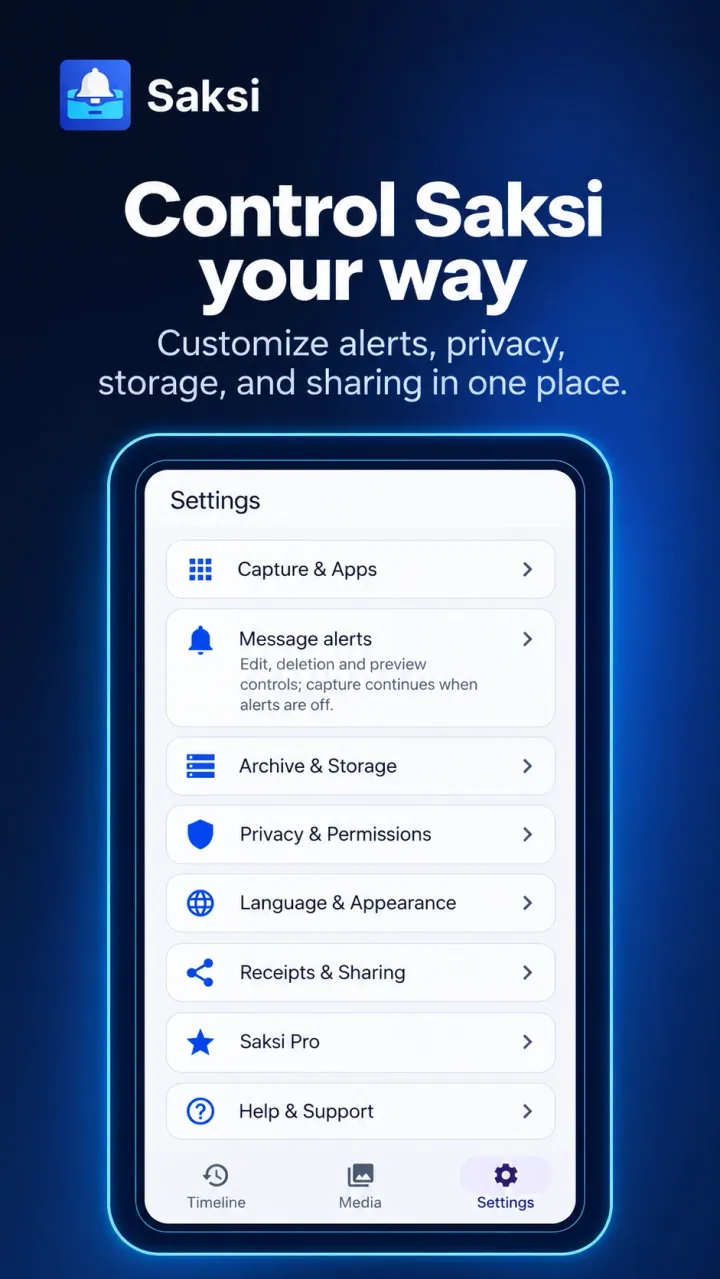
From then on, notifications are saved as they arrive. Every app is included by default, and you can exclude any app in Settings, Capture & Apps, App Filter.
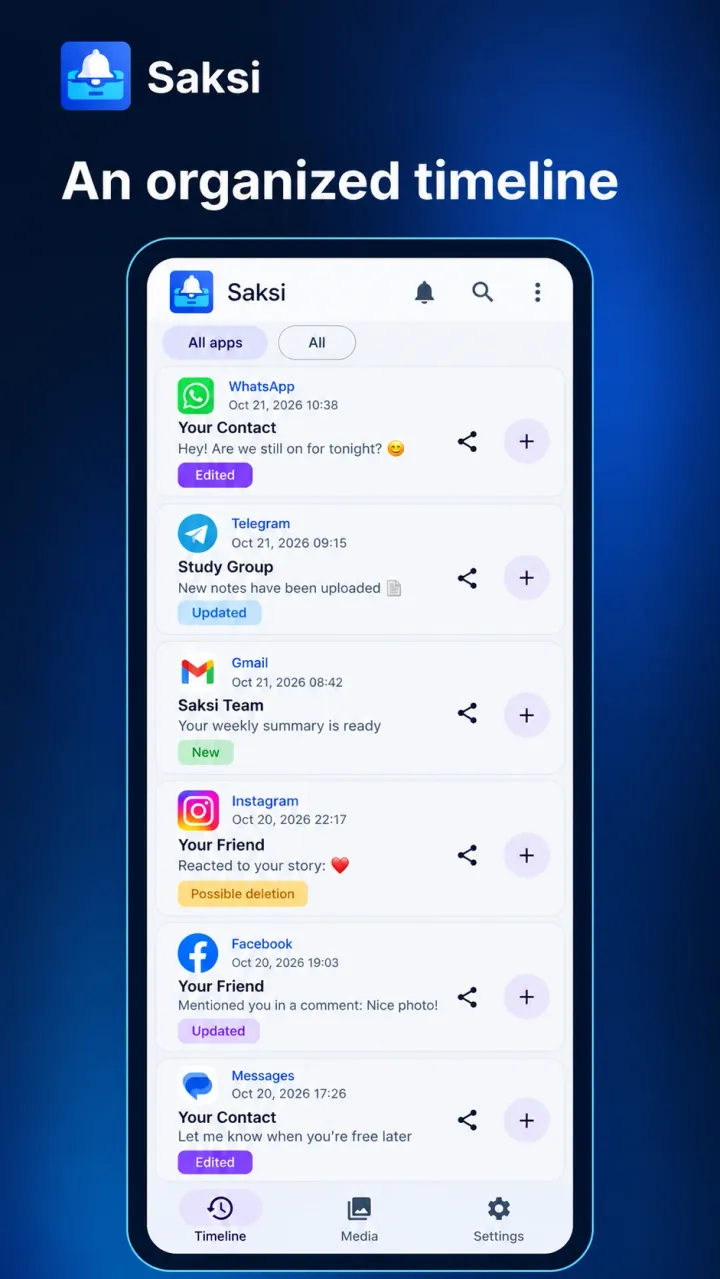
Pick a moment to see what Saksi shows. The content is fictional; the labels are the real ones from the app.
Maya
Running 10 minutes late, save me a seat
A WhatsApp message arrives and Android shows it as a notification.
Maya
Running 10 minutes late, save me a seat
NewSaksi saves the text in your Timeline and marks it New. You can swipe the notification away; the copy stays.
Maya
Running 20 minutes late, save me a seat
Earlier version
Running 10 minutes late, save me a seat
The sender edits the message and WhatsApp updates its notification with proof of the edit. Saksi marks it Message edited and keeps the earlier version.
Maya
Running 20 minutes late, save me a seat
Possible deletion (unconfirmed)Message no longer shown. Deletion is not confirmed.
Later, the message is no longer in the notification. Saksi keeps what it saw and labels it as a possible deletion, because this is not proof that the sender deleted it.
Notification Access is a special Android permission that lets an app read the notifications your phone shows. You grant it yourself, and you can turn it off at any time.
Android shows a strong warning for this permission because it covers every notification. Saksi uses it only to build the archive on your phone, and the archive is not uploaded to Saksi servers.
Open Saksi. The first screen is Finish Setup.
On the card Step 1: Notification Access, tap Open Notification Access.
Android opens its Notification Access list. Find Saksi and turn it on.
Android asks you to confirm. Read the message and allow it.
Go back to Saksi. Setup closes and your Timeline opens.
Saksi works within what Android allows. These are the things worth knowing before you rely on it.
Saksi runs on phones with Android 8.0 up to Android 16. It is not available for iPhone.
The current version was tested on an OPPO phone with Android 16. Other brands should work, but battery settings differ.
Some phones stop apps in the background to save battery. If Saksi stops saving, set its battery use to Unrestricted, and check Notification Access again after system updates or cleaner apps.
Saksi sees only what each app puts in its notification. Open or muted chats often create no notification, and some apps or lock screen settings hide the text.
Saksi saves a photo or file only when Android gives it a readable copy. With WhatsApp and Telegram you will usually see the caption and a file reference instead. Files over 20 MB are not saved.
Saksi starts with the notifications still in your notification shade when you turn on Notification Access, then saves new ones as they arrive. Anything you already dismissed cannot be saved.
Free to use. No account needed. Your notification archive stays on your phone.