
Private by design
Saksi has no account. Your notification archive is built and stored on your phone, is not uploaded to Saksi servers, and leaves your phone only when you choose to share something.
Where your data goes
The whole archive lives inside your phone. There is one way out, and you control it.
Your phone
Your apps
WhatsApp, Telegram, email and others
Android notifications
What your phone shows you
Saksi
With the Notification Access you granted
Archive on your phone
Records, saved files, alerts
You tap Share
One receipt or file, to the app you pick
Not uploaded to Saksi servers
Your archive stays on your phone
The short version
No account
There is nothing to sign up for and nothing to sign in to.
Not uploaded to Saksi servers
Your notification and chat content is stored locally on your phone and is not uploaded to Saksi servers. It leaves your phone only when you choose to share it.
Diagnostics only if you opt in
Usage analytics and crash reports are off unless you turn them on. They never include notification content, and Saksi does not use an advertising ID.
Sharing is your choice
Saved content leaves your phone only when you tap Share. The app you share to then holds that copy.
What can leave your phone
A complete list of what the app can send.
- 1
What you share
A receipt image or text, or a saved file, when you tap Share and pick a destination app.
- 2
Diagnostics, only if you turn them on
Usage analytics and crash reports sent to Google's Firebase, only after you turn each on in Settings, Privacy & Permissions. They never include notification text, names, numbers or files.
- 3
A Google Play update check
On copies installed from Google Play, Saksi asks Google Play whether an update exists. This never reads your archive. Google Play itself processes install and update information under Google's terms.
- 4
Links you tap
Some buttons, such as the Google Play listing, open Google Play.
Google advertising and billing libraries are part of the app but are not switched on in the current version. Before either is turned on, the privacy policy will explain what they do.
Permissions and why Saksi needs them
Most of the list is added by Android libraries. Here is each one in plain words.
| Permission | Why |
|---|---|
| Notification Access | Read the notifications your phone shows, to build the archive on your phone. You grant it in Android settings. |
| Notifications | Show Saksi alerts for edits and possible deletions. |
| Internet and network state | Used for the Google Play update check and, only if you turn them on, usage analytics and crash reports. Never used to upload your notification history. |
| Install referrer | Added by Firebase Analytics to ask Google Play how the app was installed. Used only if you turn on usage analytics. |
| Google Play billing | For the planned Saksi Pro. Not active in the current version. |
| Wake lock and foreground service | Added by Android's WorkManager library, which runs the daily cleanup of old history. |
| List of launcher apps | Show your apps with their icons in App Filter, so you can choose what Saksi saves. |
Not requested: storage, contacts, location, SMS, Accessibility or Do Not Disturb access. The advertising ID permissions are removed.
How long data stays, and how to erase it
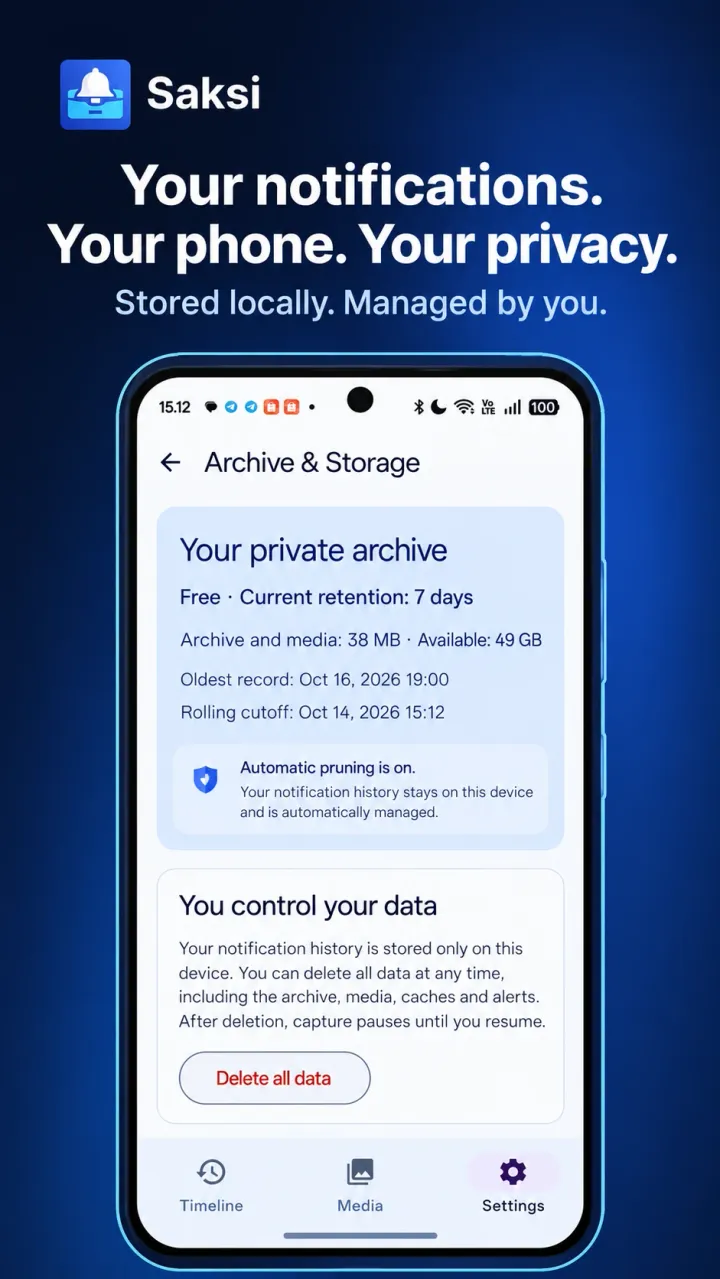
7-day automatic cleanup
The free archive keeps 7 days of history. Older records and saved files are deleted automatically, about once a day, and cannot be restored.
Delete all data
Settings, Archive & Storage, Delete all data erases Saksi's archive, saved files, caches, alerts and settings except your language, turns off optional diagnostics, then pauses capture until you resume it. It does not delete messages in other apps or copies you already shared.
Where saved files live
Saved photos and files go to Saksi's own folder on your phone's storage. They stay on your phone, but depending on your Android version, file manager apps may be able to see that folder.
No cloud backup
Android cloud backup is turned off for Saksi. On some phones, a direct phone to phone transfer can still copy app data, so use Delete all data first if you do not want your history copied. Uninstalling Saksi removes its data as Android normally does.
Turn it off any time
Turn off Notification Access in Android settings and Saksi stops saving. Switching off one app in App Filter stops future capture from it and keeps what was saved.
Privacy policy
The full privacy policy describes how the app handles data, in formal detail.
Read the privacy policyThis website
getsaksi.com uses no analytics, no tracking and no third-party scripts. The only cookie remembers the language you picked, and a small note in your browser remembers if you closed the language suggestion. On docs.getsaksi.com your browser also remembers the light or dark theme you pick. None of these is used to track you.